Showing posts with label SBC PicOpt. Show all posts

Saturday, May 2, 2015

Phaser tutorial: DronShooter - simple game in Typescript - Part 1


Previous Phaser tutorials:
Phaser tutorial: custom easing functions for tweening and easing functions with parameters
Phaser tutorial: sprites and custom properties for atlas frames
Phaser tutorial: manage different screen sizes
Phaser tutorial: How to wrap bitmap text


 In this tutorial we will create simple game with Phaser and Typescript. We will call it DronShooter and while it is simple (around 240 lines of commented source) it uses:
  • P2 physics
  • sprites and groups,
  • animations,
  • tweening with custom easing functions
  • keyboard input
 The result will look like this:

 Aim with cannon using left and right arrow. Launch missile with spacebar.


Setting project


 First we need to set our project. I am using Visual Studio 2013, but if you use any other IDE steps will be similar.
 Create new Typescript project and name it DronShooter:


 Open web.config file and add bold lines. If you do not do this, IIS server will not work with .json files - it will not return it on request as if the file did not exist. And we need this as our sprite atlas metadata are stored in .json.

<?xml version="1.0" encoding="utf-8"?>
<!--
  For more information on how to configure your ASP.NET application, please visit
  http://go.microsoft.com/fwlink/?LinkId=169433
  -->
<configuration>
  <system.web>
    <compilation debug="true" targetFramework="4.5" />
    <httpRuntime targetFramework="4.5" />
  </system.web>
  <system.webServer>
    <staticContent>
      <mimeMap fileExtension=".json" mimeType="application/json" />
    </staticContent>
  </system.webServer>
</configuration>

 In folder where you have Phaser installed, go into typescript subfolder and copy files p2.d.ts, phaser.d.ts and pixi.d.ts into directory of your game project where is index.html located. Also copy there phaser.js file from build folder.

 In Visual Studio right click on project name in Solution Explorer on the right and go to Add -> Existing Item:


 Add all the four files you copied into folder. After this step your project solution should look like this:


 Now, open index.html and change it to this:

<!DOCTYPE html>

<html lang="en">
<head>
    <meta charset="utf-8" />
    <title>Dron Shooter</title>
    <link rel="stylesheet" href="app.css" type="text/css" />
    <script src="phaser.js"></script>
    <script src="app.js"></script>
</head>
<body>
    <div id="content"></div>
</body>
</html>

 In header we are referencing phaser.js engine script file and app.js, which will be our game script file. We are writing our code in Typescript - files with .ts extension, but it will be compiled into javascript and we have to reference compiled javascripts here, not source .ts files.

 Last setting step is to open app.ts file and replace generated content with this:

window.onload = () => {
    console.log("Starting ...");
};

 You can now press F5 to compile and run. It opens IE and runs game. Currently there will be only white window, but if you press F12, console window will open with text "Starting...".


Preparing assets


 Here we will take short break and prepare assets for game. We need one background image and several sprites. We want our sprites to organize in atlas. To make things simple I already created the atlas in SBC PicOpt, which is my tool for creating atlases (if interested read how to use it for older version here, now it can produce .json output for Phaser). Download the atlas here (right click and save as "atlas.png"):


 You will also need metadata for atlas in atlas.json file - download it here. These metadata contains information on every single sprite: where in atlas it is, how big it is, what is its name, ...

 Finally, right click and save background image (or you can create your own if it is 640x400). Save it as "bg.jpg":


 Copy all three files into the same folder as index.html is located.


Adding Phaser Game


 Now, we are all ready to start coding. Open app.ts again and replace our onload method with this "shell":

// -------------------------------------------------------------------------
// -------------------------------------------------------------------------
// -------------------------------------------------------------------------
class Game extends Phaser.Game {
    // -------------------------------------------------------------------------
    constructor() {
        // init game
        super(640, 400, Phaser.CANVAS, "content", State);
    }
}

// -------------------------------------------------------------------------
// -------------------------------------------------------------------------
// -------------------------------------------------------------------------
class State extends Phaser.State {

}

// -------------------------------------------------------------------------
// -------------------------------------------------------------------------
// -------------------------------------------------------------------------
window.onload = () => {
    new Game();
};

 In onload we are creating new Game object, which is instance of our Game class that derives from Phaser.Game. It will stay simple in this example and the only thing it does is it calls super constructor. Our game will have size 640x400. Renderer is Phaser.CANVAS, but you are free to change it to Phaser.AUTO - I used canvas as there are sometimes problems with debug output if renderer is WebGL (flickering, ...). Next parameter refers to our index.html file where in body section
we have this line: <div id="content"></div>. Here, on the page, the game will be placed. Last parameter is Phaser.State the game should start with. It is our custom State class that derives from Phaser.State.
 Phaser.State is important class as Phaser is checking it for existence of some methods and if they exist, Phaser will call them in appropriate time. In our simple game we will use these:
  • preload() - called in the beginning of state and we will load our assets here,
  • create() - called after preload. All assets are already in place and we can build our scene or create game objects here,
  • update() - called on every frame. Good place to read input from keyboard for us here,
  • render() - called when game renders. In Phaser you usually do not have to do much here as engine renders all objects in scene hierarchy for you. But this is right place to display some debug information over rendered scene.

 So, let's load our assets. Add preload() method to State class:

class State extends Phaser.State {

    // -------------------------------------------------------------------------
    preload() {
        // background image
        this.game.load.image("BG", "bg.jpg");
        // load sprite images in atlas
        this.game.load.atlas("Atlas", "atlas.png", "atlas.json");
    }
}

 Here you can see how to load simple image - no atlas, so no metadata required. And also how to load atlas with its .json metadata file. In both cases you are creating "Key" as the first parameter. Your asset (atlas or image) will be stored under this key inside Phaser and whenever you need to work with it you recall it through this key. The key is case sensitive!

 Add create() method to State class:

    // -------------------------------------------------------------------------
    create() {
        // background
        this.add.image(0, 0, "BG");
        // dron sprite
        this.add.sprite(320, 100, "Atlas", "dron1", this.world);
    }

 Press F5 to compile and run and you should see this:

 In code above: we created image with key "BG" and placed it on position 0,0, which is top left corner and then we created dron sprite and placed it on position 320, 100. The dron sprite is in atlas (asset with key "Atlas") and as it contains all our sprites, we have to specify which one we want to use ("dron1" here). Look into atlas.json file, locate dron1 sprite and check data for it.

 Two topics are here to mention:
  1. last parameter for dron sprite is this.world. If you omit it your sprite will be added to world by default. World is Phaser.World object which is derived from Phaser.Group. Group can contain for example sprites or other groups. If you move or rotate group, all child sprites and groups in it will move or rotate too. This is way how to build scene tree which says how looks object hierarchy. While group is non-leaf node, sprite is leaf node. There are also other leaf nodes like buttons, ... but in this simple game we will use only groups and sprites,
  2. secondly, we placed dron on x = 320, but it is little bit shifted to right. It is because sprites has something called anchor. It is point with default value 0,0 and it is top left corner of  sprite image. If we need is center dron sprite on position 320x100, we have to change code a little like this (0.5 = 50%):

        // dron sprite
        var dron: Phaser.Sprite = this.add.sprite(320, 100, "Atlas", "dron1", this.world);
        dron.anchor.setTo(0.5, 0.5);


End of Part 1


 Here ends part 1. In Part 2 we will start moving drones with custom easing function. We will call it wiggle as it nicely wiggles around some point in random like curves.


Saturday, April 11, 2015

Phaser tutorial: sprites and custom properties for atlas frames


Previous Phaser tutorials:
Phaser tutorial: manage different screen sizes
Phaser tutorial: How to wrap bitmap text


 Organizing sprites into atlases is important as it decreases loading time and increases performance of your game. You can create atlas by hand, but it would need lot of effort and it would be time consuming. Usually, you will use some specialised tool. In these days most used tool is Texture Packer. Unfortunately, this tool is just for creating atlases from individual frames and nothing more. It does not allow you to add additional properties to frames of your atlas.

 In this article I will show how to add additional properties to frames in Phaser engine, how to create atlas with these properties using SBC PicOpt tool and finally how to build flexible character with them. This is final result:


  Although, quality of the .gif animation image is low, you can see we will build Mr. Apple a let him do several movements: blink with eyes, jump, look suspiciously and shake with head.


Problems

 Mr. Apple is single object that hides small scene graph in it. The problem is how to build such a graph and how to do it with less effort. For this we will have to use Phaser groups and sprite and we will have to organize them in tree-like hierarchy. If you look at official Phaser examples you can find Group Transform example in which robot is build from parts. In listed code you can read:

    robot.create(90, 175, 'arm-l');
    robot.create(549, 175, 'arm-r');
    robot.create(270, 325, 'leg-l');
    robot.create(410, 325, 'leg-r');
    robot.create(219, 32, 'body');
    robot.create(335, 173,'eye');

 This is valid way how to build it, but the ugly part is, that you have to position each part manually in code. If you or your graphic change any part, it is probable, that you will have to rewrite this code to position adjusted part correctly.

 Second problem are anchors. For example in Unity each sprite has pivot point as a part of the definition. In Phaser you have to set anchor on sprite instance after it is created. It can turn into another try and miss game until you are happy with your anchor values. Anchors are between 0 and 1 and say how much the sprite image is shifted relative to its position. If your sprite has position 100, 100 and anchor is 0.5, 0.5 then the sprite is centered around position 100, 100.


 It is also necessary to say, that Texture Packer saves information on original frame size and anchors are related to it. If you had free space in the frame then this information is still there and anchor 0.5, 0.5 can look like this (that big guy is sprite from famous Golden Axe):


 Anchor also can be over 1 or under 0. Then the anchor point is outside of the frame, but it is still valid.

 Imagine you have sprites like this and you want to set anchor to points marked with red cross:

 It is obvious that for each sprite the anchor values will be different. You can avoid this by making all frames of the same size with lot of free space. But, as soon as you add third sprite which is wider or higher, you will have to adjust all previous frames and also recalculate new anchor values. Just try to guess what is value of this anchor - after several try and miss attempts you find it (of course, you can also calculate it if you measure anchor point distance from top left point and divide it with total frame width for x and height for y):


 Third problem is that in Texture Packer you can't add additional markers or extra information on frame and even if you adjusted export by hand or some tool (with for example anchors), then Phaser implementation of atlas loading would ignore it.

 So our problems are:
 - cumbersome positioning of group parts (sprites or nested groups),
 - cumbersome setting of anchors,
 - not possible to add additional properties to atlas frames


Mr. Apple

 As said earlier, we will build Mr. Apple. It will be build from Phaser groups and sprites. He will have shadow in the bottom, body and head with eyes, eyelids, glasses over it. To animate him later, shadow, body and head will have to be independent parts. If he is jumping, then shadow stays on ground, but rest is in the air. Here is scene graph of Mr. Apple:
 Groups are in red and sprites in blue. Top node is Mr. Apple himself so in game you can create several instances and moving it moves all subsequent parts. This is graphical representation of the same scene graph. Groups are that dashed rectangles:


 World is Phaser world and it just says that Mr. Apple is placed somewhere... From this analysis we can see, that that it would be fine if we had two additional information on each frame. The red cross is anchor point of sprite and the blue cross is position of next item. It is chained together: red cross position of sprite overlaps blue cross position of previous sprite. The "T" shaped sprite is glasses as we need to draw it over eyes and eyelids. More, eyelids are animated to make blinks.


Sprite atlas with additional properties

 Now, we will solve our first two problems. We will create atlas and add information for red and blue crosses. Download SBC PicOpt tool here. It is java application. I wrote it long time ago and the code inside is really very very ugly and bad. If you can imagine any wrong thing in writing code, be sure it is there. Every time I need something I adjust it and it is pure mess now. But, it still works and it is great for me. It can create even very big atlases with hundreds of frames in quite a short time. It can also scale sprites (there is global scale and also individual scales for each sprite) and do lot of other things. One of these thing is, that you can add custom properties to sprites.

 If you need short intro into it, read this article. It is for older version, but still valid (new features added since).

 Also download this image (right click and save) with Mr. Apple's parts:

 If you wonder, what is the magenta grid, it is way how to split frames. The tool will analyze the image and cut sprites from it (it can also load individual images without grid).

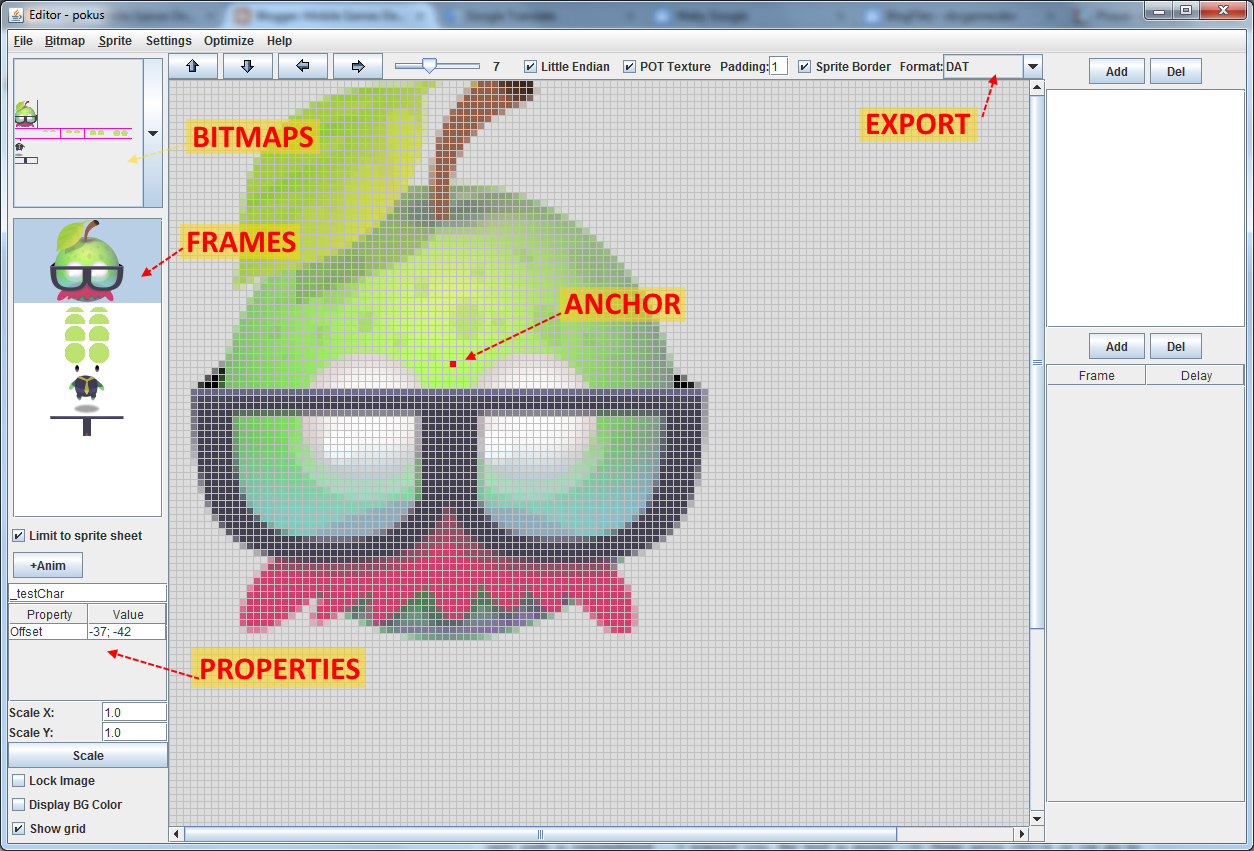
 In case, you have both the tool and image downloaded and you ran the tool, pres ctrl+N. It is new project. Navigate, where you want to save it and give it name (this time the file is not yet created, only path is remembered ... I warned you, the tool is messy :-)). Now, press ctrl+A or (or go to Bitmap -> Add bitmap and open saved image. Time to save: pres ctrl+S. It creates save file in .xml format. You should see this:


 There is red "anchor" point and property "Offset". Offset says how many pixels is top left corner of trimmed sprite from red "anchor" point. This is not exactly what we want, but during export it will be recalculated into anchor information suitable for Phaser. Red point is always fixed - if you want to move it, you have to move sprite itself. In export section there are "JSON - Texture Packer" and "JSON - TP+Properties" items. The first one mimics Texture Packer export and Phaser can load it without problems as JSON Array. The second is the same, but it adds additional properties on each frame - currently the anchor information. This is example export for one frame with "JSON - Texture Packer":

{
 "filename": "head",
 "frame": {"x":1,"y":1,"w":74,"h":82},
 "rotated": false,
 "trimmed": true,
 "spriteSourceSize": {"x":0,"y":1,"w":74,"h":82},
 "sourceSize": {"w":74,"h":86}
}

And this is example for "JSON - TP+Properties":

{
 "filename": "_testChar",
 "frame": {"x":1,"y":1,"w":74,"h":82},
 "rotated": false,
 "trimmed": true,
 "spriteSourceSize": {"x":0,"y":1,"w":74,"h":82},
 "sourceSize": {"w":74,"h":86},
 "anchor": {"w":0.49324,"h":0.50581},
}

 Notice the red line with calculated anchor.

 Now is time to select export type to "JSON - TP+Properties" and to name each of our frames. Name them in text field above properties on left like this:
  • body: "body",
  • eyelids: "blick_0", "blick_1", "blick_2", "blick_3", "blick_4",
  • eyes: "eyes",
  • body: "body",
  • shadow: "shadow",
  • glasses: "glasses"
 Press ctrl+P or select Sprite -> Sprite Properties and add new point property with name "nextItem" like this:


 This adds new blue point into main area. This additional property point can be dragged with mouse. This is our blue cross. Now, you can place red and blue points like it is on Mr. Apple's scene graph. Or you may load SBC PicOpt project, where sprites are renamed and markers placed here.

 Finally, choose Optimize -> Best Place (name of atlas making method). this will create new directory with name "export" and two files in it: .png with atlas and .json with JSON Array. Atlas may look like this, but you can have the sprites on different positions:

 In .json each frame has now this structure:

{
 "filename": "head",
 "frame": {"x":1,"y":1,"w":74,"h":82},
 "rotated": false,
 "trimmed": true,
 "spriteSourceSize": {"x":0,"y":1,"w":74,"h":82},
 "sourceSize": {"w":74,"h":86},
 "anchor": {"w":0.49324,"h":0.95930},
 "nextitem": {"w":0,"h":-35}
}

 Now, we have all assets prepared and we need to persuade Phaser to work with new frame properties.


Code

 Code will be written in Typescript and you can get whole final project here (pressing q, w, e, r will force Mr. Apple to do some things).

 Phaser can process atlas data in JSON Array, JSON Hash and XML. Each type of data is processed in separate routine in animation/AnimationParser.js source. All these routines do, is that it builds frames (Phaser.Frame) from loaded atlas data. And all we will do, is change this to add our custom callback on every created frame. Here is new class PhaserUtils in module Utils (we will change only JSON Array loading as this is type exported from SBC PicOpt tool):

module Utils {

    export class PhaserUtils {

        // -------------------------------------------------------------------------
        public static ChangeAnimationPhaserJSONData(
            aCallback: (aFrame: Phaser.Frame, aData: any) => void) {

            Phaser.AnimationParser["myCallback"] = aCallback;

            // new implementation of JSON array textureatlas loading routine
            Phaser.AnimationParser.JSONData = function (aGame, aJSON, aCacheKey): Phaser.FrameData {

                //  Malformed?
                if (!aJSON['frames']) {
                    console.warn("Phaser.AnimationParser.JSONData: Invalid Texture Atlas JSON given, missing 'frames' array");
                    console.log(aJSON);
                    return;
                }

                //  Let's create some frames then
                var data = new Phaser.FrameData();

                //  By this stage frames is a fully parsed array
                var frames = aJSON['frames'];
                var newFrame;

                for (var i = 0; i < frames.length; i++) {
                    var uuid = aGame.rnd.uuid();

                    newFrame = data.addFrame(new Phaser.Frame(
                        i,
                        frames[i].frame.x,
                        frames[i].frame.y,
                        frames[i].frame.w,
                        frames[i].frame.h,
                        frames[i].filename,
                        uuid.toString()
                        ));

                    PIXI.TextureCache[uuid] = new PIXI.Texture(PIXI.BaseTextureCache[aCacheKey], <PIXI.Rectangle> {
                        x: frames[i].frame.x,
                        y: frames[i].frame.y,
                        width: frames[i].frame.w,
                        height: frames[i].frame.h
                    });

                    if (frames[i].trimmed) {
                        newFrame.setTrim(
                            frames[i].trimmed,
                            frames[i].sourceSize.w,
                            frames[i].sourceSize.h,
                            frames[i].spriteSourceSize.x,
                            frames[i].spriteSourceSize.y,
                            frames[i].spriteSourceSize.w,
                            frames[i].spriteSourceSize.h
                            );
                    }

                    // HERE is change from default implementation
                    Phaser.AnimationParser["myCallback"](newFrame, frames[i]);
                }

                return data;
            }
        }
    }
}

 It is almost pure copy-paste. In top we add myCallback property to original Phaser.AnimatonParser class and we assign parameter passed into method to it. This parameter is function that takes new fresh Phaser.Frame and JSON data and will do some additional processing to default one. Next, we replace implementation of Phaser.AnimationParser.JSONData with copy of original implementation (I had to do small changes to avoid typescript errors - marked in red) and in the bottom we add call to our callback method.

 In game class we first call this PhaserUtility method and we pass it "additionalFramProperties". This is the callback method that will get called on every atlas frame created. In it we can finally read our new anchor and nextItem properties. From now on every atlas frame will have it. As we can change this callback, we can have different properties for different atlases!

module CustomFrames {

    export class Game extends Phaser.Game {
        // -------------------------------------------------------------------------
        constructor() {
            // change default loading routine for JSON Array
            var callback = this.additionalFrameProperties;
            Utils.PhaserUtils.ChangeAnimationPhaserJSONData(callback);

            // calculate screen dimensions
            var screenDims = Utils.ScreenUtils.calculateScreenMetrics(800, 500, Utils.Orientation.LANDSCAPE, 800, 500);

            super(screenDims.gameWidth, screenDims.gameHeight, Phaser.AUTO, "content", null /* , transparent, antialias, physicsConfig */);
            
            // states
            this.state.add('Boot', Boot);

            // start
            this.state.start('Boot');
        }

        // -------------------------------------------------------------------------
        public additionalFrameProperties(aFrame: Phaser.Frame, aData: any): void {
            // anchor
            if (aData.anchor) {
                aFrame["anchorX"] = aData.anchor.w;
                aFrame["anchorY"] = aData.anchor.h;
            }

            // next tem
            if (aData.nextitem) {
                aFrame["nextItemX"] = aData.nextitem.w;
                aFrame["nextItemY"] = aData.nextitem.h;
            }
        }
    }
}

 In class MrApple we build Mr. Apple with all its groups and sprites. The constructor method could be written in more compact way, but I left it like it is for easy reading. You can go step by step and see which part is added, where it is positioned:

module CustomFrames {

    export class MrApple extends Phaser.Group {

        private _game: Phaser.Game;

        private _shadow: Phaser.Sprite;
        private _character: Phaser.Group;
        private _body: Phaser.Sprite
        private _top: Phaser.Group;
        private _head: Phaser.Sprite;
        private _eyes: Phaser.Sprite;
        private _blick: Phaser.Sprite;
        private _glasses: Phaser.Sprite;

        // -------------------------------------------------------------------------
        constructor(aGame: Phaser.Game) {
            super(aGame, null, "MrApple group");

            // to save typing
            this._game = aGame;
            var cache: Phaser.Cache = aGame.cache;
            var add: Phaser.GameObjectFactory = aGame.add;

            // shadow
            this._shadow = add.sprite(0, 0, "MrApple", "shadow", this);
            var shadowFrame: Phaser.Frame = cache.getFrameByName("MrApple", "shadow");
            this._shadow.anchor.setTo(shadowFrame["anchorX"], shadowFrame["anchorY"]);

            // character group
            this._character = add.group(this, "character group");
            this._character.position.setTo(shadowFrame["nextItemX"], shadowFrame["nextItemY"]);

            // sprite body
            this._body = add.sprite(0, 0, "MrApple", "body", this._character);
            var bodyFrame: Phaser.Frame = cache.getFrameByName("MrApple", "body");
            this._body.anchor.setTo(bodyFrame["anchorX"], bodyFrame["anchorY"]);

            // top group
            this._top = add.group(this._character, "top group");
            this._top.position.setTo(bodyFrame["nextItemX"], bodyFrame["nextItemY"]);

            // head
            this._head = add.sprite(0, 0, "MrApple", "head", this._top);
            var headFrame: Phaser.Frame = cache.getFrameByName("MrApple", "head");
            this._head.anchor.setTo(headFrame["anchorX"], headFrame["anchorY"]);

            var nextX: number = headFrame["nextItemX"];
            var nextY: number = headFrame["nextItemY"];

            // eyes
            this._eyes = add.sprite(nextX, nextY, "MrApple", "eyes", this._top);
            var eyesFrame: Phaser.Frame = cache.getFrameByName("MrApple", "eyes");
            this._eyes.anchor.setTo(eyesFrame["anchorX"], eyesFrame["anchorY"]);

            // blick
            this._blick = add.sprite(nextX, nextY, "MrApple", "blick_0", this._top);
            var blickFrame: Phaser.Frame = cache.getFrameByName("MrApple", "blick_0");
            this._blick.anchor.setTo(blickFrame["anchorX"], blickFrame["anchorY"]);

            // glasses
            this._glasses = add.sprite(nextX, nextY, "MrApple", "glasses", this._top);
            var glassesFrame: Phaser.Frame = cache.getFrameByName("MrApple", "glasses");
            this._glasses.anchor.setTo(glassesFrame["anchorX"], glassesFrame["anchorY"]);


            // add animations to blick sprite
            this._blick.animations.add("blick_idle", Phaser.Animation.generateFrameNames("blick_", 0, 0, "", 1), 30, true);
            this._blick.animations.add("blick_blick", Phaser.Animation.generateFrameNames("blick_", 0, 4, "", 1), 30, false);
        }

// ... various tween methods to force Mr.Apple do funny things ...

    }
}

 In the listing I omitted various methods that are run when q, w, e, r keys are pressed. These methods are playing with tweens and are not subject of this article. You can examine them in final project source.


Conculsion

 Mr. Apple is build. If you need to reposition some parts, you can do it in editor, export assets and your code will still work. With small adjustments you can change MrApple class to more universal FruitCharacter class and add Mrs. Pear and other characters like on this image (image is from game Fruit Dating which is puzzle game currently available for iOS and Android and graphics is by Tomas Kopecky):


Download final project here: CustomFrames.zip