Showing posts with label screen. Show all posts

Saturday, April 11, 2015

Phaser tutorial: sprites and custom properties for atlas frames


Previous Phaser tutorials:
Phaser tutorial: manage different screen sizes
Phaser tutorial: How to wrap bitmap text


 Organizing sprites into atlases is important as it decreases loading time and increases performance of your game. You can create atlas by hand, but it would need lot of effort and it would be time consuming. Usually, you will use some specialised tool. In these days most used tool is Texture Packer. Unfortunately, this tool is just for creating atlases from individual frames and nothing more. It does not allow you to add additional properties to frames of your atlas.

 In this article I will show how to add additional properties to frames in Phaser engine, how to create atlas with these properties using SBC PicOpt tool and finally how to build flexible character with them. This is final result:


  Although, quality of the .gif animation image is low, you can see we will build Mr. Apple a let him do several movements: blink with eyes, jump, look suspiciously and shake with head.


Problems

 Mr. Apple is single object that hides small scene graph in it. The problem is how to build such a graph and how to do it with less effort. For this we will have to use Phaser groups and sprite and we will have to organize them in tree-like hierarchy. If you look at official Phaser examples you can find Group Transform example in which robot is build from parts. In listed code you can read:

    robot.create(90, 175, 'arm-l');
    robot.create(549, 175, 'arm-r');
    robot.create(270, 325, 'leg-l');
    robot.create(410, 325, 'leg-r');
    robot.create(219, 32, 'body');
    robot.create(335, 173,'eye');

 This is valid way how to build it, but the ugly part is, that you have to position each part manually in code. If you or your graphic change any part, it is probable, that you will have to rewrite this code to position adjusted part correctly.

 Second problem are anchors. For example in Unity each sprite has pivot point as a part of the definition. In Phaser you have to set anchor on sprite instance after it is created. It can turn into another try and miss game until you are happy with your anchor values. Anchors are between 0 and 1 and say how much the sprite image is shifted relative to its position. If your sprite has position 100, 100 and anchor is 0.5, 0.5 then the sprite is centered around position 100, 100.


 It is also necessary to say, that Texture Packer saves information on original frame size and anchors are related to it. If you had free space in the frame then this information is still there and anchor 0.5, 0.5 can look like this (that big guy is sprite from famous Golden Axe):


 Anchor also can be over 1 or under 0. Then the anchor point is outside of the frame, but it is still valid.

 Imagine you have sprites like this and you want to set anchor to points marked with red cross:

 It is obvious that for each sprite the anchor values will be different. You can avoid this by making all frames of the same size with lot of free space. But, as soon as you add third sprite which is wider or higher, you will have to adjust all previous frames and also recalculate new anchor values. Just try to guess what is value of this anchor - after several try and miss attempts you find it (of course, you can also calculate it if you measure anchor point distance from top left point and divide it with total frame width for x and height for y):


 Third problem is that in Texture Packer you can't add additional markers or extra information on frame and even if you adjusted export by hand or some tool (with for example anchors), then Phaser implementation of atlas loading would ignore it.

 So our problems are:
 - cumbersome positioning of group parts (sprites or nested groups),
 - cumbersome setting of anchors,
 - not possible to add additional properties to atlas frames


Mr. Apple

 As said earlier, we will build Mr. Apple. It will be build from Phaser groups and sprites. He will have shadow in the bottom, body and head with eyes, eyelids, glasses over it. To animate him later, shadow, body and head will have to be independent parts. If he is jumping, then shadow stays on ground, but rest is in the air. Here is scene graph of Mr. Apple:
 Groups are in red and sprites in blue. Top node is Mr. Apple himself so in game you can create several instances and moving it moves all subsequent parts. This is graphical representation of the same scene graph. Groups are that dashed rectangles:


 World is Phaser world and it just says that Mr. Apple is placed somewhere... From this analysis we can see, that that it would be fine if we had two additional information on each frame. The red cross is anchor point of sprite and the blue cross is position of next item. It is chained together: red cross position of sprite overlaps blue cross position of previous sprite. The "T" shaped sprite is glasses as we need to draw it over eyes and eyelids. More, eyelids are animated to make blinks.


Sprite atlas with additional properties

 Now, we will solve our first two problems. We will create atlas and add information for red and blue crosses. Download SBC PicOpt tool here. It is java application. I wrote it long time ago and the code inside is really very very ugly and bad. If you can imagine any wrong thing in writing code, be sure it is there. Every time I need something I adjust it and it is pure mess now. But, it still works and it is great for me. It can create even very big atlases with hundreds of frames in quite a short time. It can also scale sprites (there is global scale and also individual scales for each sprite) and do lot of other things. One of these thing is, that you can add custom properties to sprites.

 If you need short intro into it, read this article. It is for older version, but still valid (new features added since).

 Also download this image (right click and save) with Mr. Apple's parts:

 If you wonder, what is the magenta grid, it is way how to split frames. The tool will analyze the image and cut sprites from it (it can also load individual images without grid).

 In case, you have both the tool and image downloaded and you ran the tool, pres ctrl+N. It is new project. Navigate, where you want to save it and give it name (this time the file is not yet created, only path is remembered ... I warned you, the tool is messy :-)). Now, press ctrl+A or (or go to Bitmap -> Add bitmap and open saved image. Time to save: pres ctrl+S. It creates save file in .xml format. You should see this:
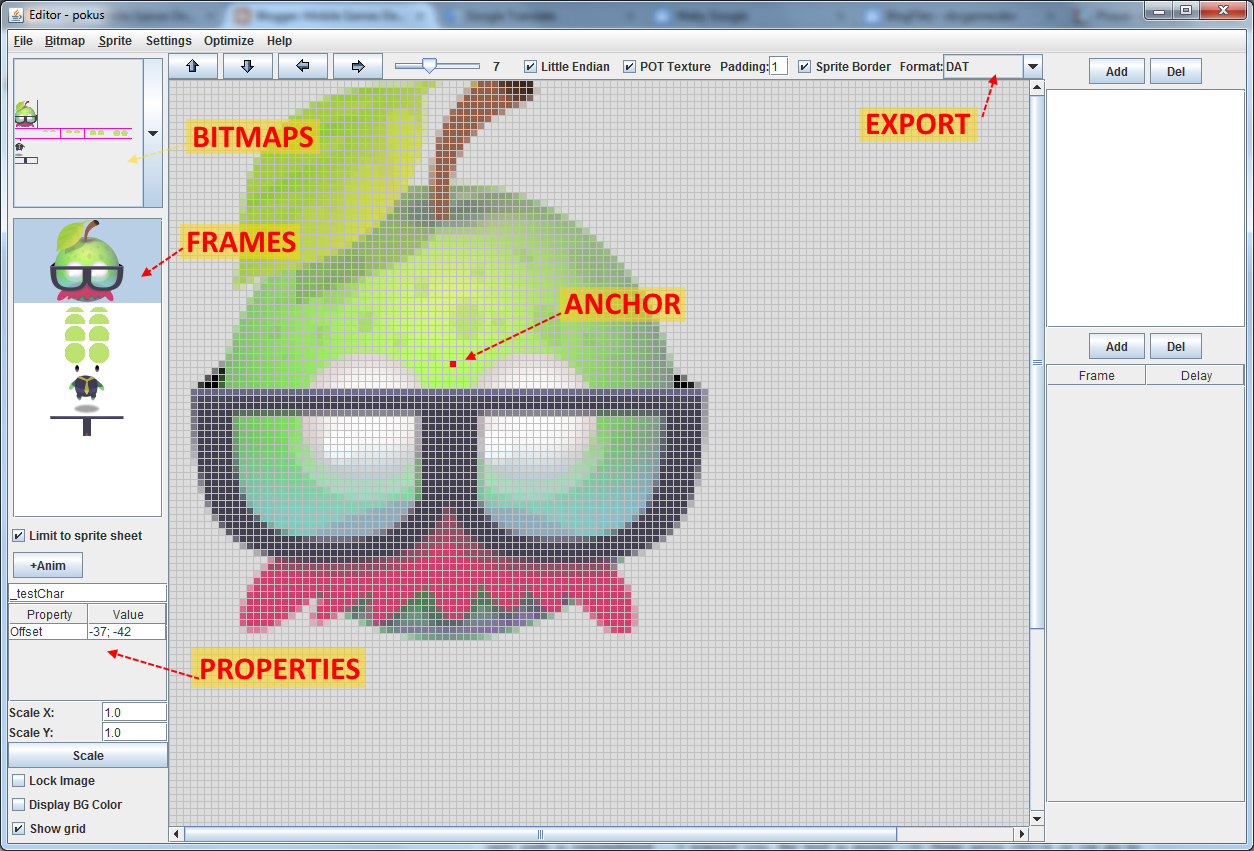

 There is red "anchor" point and property "Offset". Offset says how many pixels is top left corner of trimmed sprite from red "anchor" point. This is not exactly what we want, but during export it will be recalculated into anchor information suitable for Phaser. Red point is always fixed - if you want to move it, you have to move sprite itself. In export section there are "JSON - Texture Packer" and "JSON - TP+Properties" items. The first one mimics Texture Packer export and Phaser can load it without problems as JSON Array. The second is the same, but it adds additional properties on each frame - currently the anchor information. This is example export for one frame with "JSON - Texture Packer":

{
 "filename": "head",
 "frame": {"x":1,"y":1,"w":74,"h":82},
 "rotated": false,
 "trimmed": true,
 "spriteSourceSize": {"x":0,"y":1,"w":74,"h":82},
 "sourceSize": {"w":74,"h":86}
}

And this is example for "JSON - TP+Properties":

{
 "filename": "_testChar",
 "frame": {"x":1,"y":1,"w":74,"h":82},
 "rotated": false,
 "trimmed": true,
 "spriteSourceSize": {"x":0,"y":1,"w":74,"h":82},
 "sourceSize": {"w":74,"h":86},
 "anchor": {"w":0.49324,"h":0.50581},
}

 Notice the red line with calculated anchor.

 Now is time to select export type to "JSON - TP+Properties" and to name each of our frames. Name them in text field above properties on left like this:
  • body: "body",
  • eyelids: "blick_0", "blick_1", "blick_2", "blick_3", "blick_4",
  • eyes: "eyes",
  • body: "body",
  • shadow: "shadow",
  • glasses: "glasses"
 Press ctrl+P or select Sprite -> Sprite Properties and add new point property with name "nextItem" like this:


 This adds new blue point into main area. This additional property point can be dragged with mouse. This is our blue cross. Now, you can place red and blue points like it is on Mr. Apple's scene graph. Or you may load SBC PicOpt project, where sprites are renamed and markers placed here.

 Finally, choose Optimize -> Best Place (name of atlas making method). this will create new directory with name "export" and two files in it: .png with atlas and .json with JSON Array. Atlas may look like this, but you can have the sprites on different positions:

 In .json each frame has now this structure:

{
 "filename": "head",
 "frame": {"x":1,"y":1,"w":74,"h":82},
 "rotated": false,
 "trimmed": true,
 "spriteSourceSize": {"x":0,"y":1,"w":74,"h":82},
 "sourceSize": {"w":74,"h":86},
 "anchor": {"w":0.49324,"h":0.95930},
 "nextitem": {"w":0,"h":-35}
}

 Now, we have all assets prepared and we need to persuade Phaser to work with new frame properties.


Code

 Code will be written in Typescript and you can get whole final project here (pressing q, w, e, r will force Mr. Apple to do some things).

 Phaser can process atlas data in JSON Array, JSON Hash and XML. Each type of data is processed in separate routine in animation/AnimationParser.js source. All these routines do, is that it builds frames (Phaser.Frame) from loaded atlas data. And all we will do, is change this to add our custom callback on every created frame. Here is new class PhaserUtils in module Utils (we will change only JSON Array loading as this is type exported from SBC PicOpt tool):

module Utils {

    export class PhaserUtils {

        // -------------------------------------------------------------------------
        public static ChangeAnimationPhaserJSONData(
            aCallback: (aFrame: Phaser.Frame, aData: any) => void) {

            Phaser.AnimationParser["myCallback"] = aCallback;

            // new implementation of JSON array textureatlas loading routine
            Phaser.AnimationParser.JSONData = function (aGame, aJSON, aCacheKey): Phaser.FrameData {

                //  Malformed?
                if (!aJSON['frames']) {
                    console.warn("Phaser.AnimationParser.JSONData: Invalid Texture Atlas JSON given, missing 'frames' array");
                    console.log(aJSON);
                    return;
                }

                //  Let's create some frames then
                var data = new Phaser.FrameData();

                //  By this stage frames is a fully parsed array
                var frames = aJSON['frames'];
                var newFrame;

                for (var i = 0; i < frames.length; i++) {
                    var uuid = aGame.rnd.uuid();

                    newFrame = data.addFrame(new Phaser.Frame(
                        i,
                        frames[i].frame.x,
                        frames[i].frame.y,
                        frames[i].frame.w,
                        frames[i].frame.h,
                        frames[i].filename,
                        uuid.toString()
                        ));

                    PIXI.TextureCache[uuid] = new PIXI.Texture(PIXI.BaseTextureCache[aCacheKey], <PIXI.Rectangle> {
                        x: frames[i].frame.x,
                        y: frames[i].frame.y,
                        width: frames[i].frame.w,
                        height: frames[i].frame.h
                    });

                    if (frames[i].trimmed) {
                        newFrame.setTrim(
                            frames[i].trimmed,
                            frames[i].sourceSize.w,
                            frames[i].sourceSize.h,
                            frames[i].spriteSourceSize.x,
                            frames[i].spriteSourceSize.y,
                            frames[i].spriteSourceSize.w,
                            frames[i].spriteSourceSize.h
                            );
                    }

                    // HERE is change from default implementation
                    Phaser.AnimationParser["myCallback"](newFrame, frames[i]);
                }

                return data;
            }
        }
    }
}

 It is almost pure copy-paste. In top we add myCallback property to original Phaser.AnimatonParser class and we assign parameter passed into method to it. This parameter is function that takes new fresh Phaser.Frame and JSON data and will do some additional processing to default one. Next, we replace implementation of Phaser.AnimationParser.JSONData with copy of original implementation (I had to do small changes to avoid typescript errors - marked in red) and in the bottom we add call to our callback method.

 In game class we first call this PhaserUtility method and we pass it "additionalFramProperties". This is the callback method that will get called on every atlas frame created. In it we can finally read our new anchor and nextItem properties. From now on every atlas frame will have it. As we can change this callback, we can have different properties for different atlases!

module CustomFrames {

    export class Game extends Phaser.Game {
        // -------------------------------------------------------------------------
        constructor() {
            // change default loading routine for JSON Array
            var callback = this.additionalFrameProperties;
            Utils.PhaserUtils.ChangeAnimationPhaserJSONData(callback);

            // calculate screen dimensions
            var screenDims = Utils.ScreenUtils.calculateScreenMetrics(800, 500, Utils.Orientation.LANDSCAPE, 800, 500);

            super(screenDims.gameWidth, screenDims.gameHeight, Phaser.AUTO, "content", null /* , transparent, antialias, physicsConfig */);
            
            // states
            this.state.add('Boot', Boot);

            // start
            this.state.start('Boot');
        }

        // -------------------------------------------------------------------------
        public additionalFrameProperties(aFrame: Phaser.Frame, aData: any): void {
            // anchor
            if (aData.anchor) {
                aFrame["anchorX"] = aData.anchor.w;
                aFrame["anchorY"] = aData.anchor.h;
            }

            // next tem
            if (aData.nextitem) {
                aFrame["nextItemX"] = aData.nextitem.w;
                aFrame["nextItemY"] = aData.nextitem.h;
            }
        }
    }
}

 In class MrApple we build Mr. Apple with all its groups and sprites. The constructor method could be written in more compact way, but I left it like it is for easy reading. You can go step by step and see which part is added, where it is positioned:

module CustomFrames {

    export class MrApple extends Phaser.Group {

        private _game: Phaser.Game;

        private _shadow: Phaser.Sprite;
        private _character: Phaser.Group;
        private _body: Phaser.Sprite
        private _top: Phaser.Group;
        private _head: Phaser.Sprite;
        private _eyes: Phaser.Sprite;
        private _blick: Phaser.Sprite;
        private _glasses: Phaser.Sprite;

        // -------------------------------------------------------------------------
        constructor(aGame: Phaser.Game) {
            super(aGame, null, "MrApple group");

            // to save typing
            this._game = aGame;
            var cache: Phaser.Cache = aGame.cache;
            var add: Phaser.GameObjectFactory = aGame.add;

            // shadow
            this._shadow = add.sprite(0, 0, "MrApple", "shadow", this);
            var shadowFrame: Phaser.Frame = cache.getFrameByName("MrApple", "shadow");
            this._shadow.anchor.setTo(shadowFrame["anchorX"], shadowFrame["anchorY"]);

            // character group
            this._character = add.group(this, "character group");
            this._character.position.setTo(shadowFrame["nextItemX"], shadowFrame["nextItemY"]);

            // sprite body
            this._body = add.sprite(0, 0, "MrApple", "body", this._character);
            var bodyFrame: Phaser.Frame = cache.getFrameByName("MrApple", "body");
            this._body.anchor.setTo(bodyFrame["anchorX"], bodyFrame["anchorY"]);

            // top group
            this._top = add.group(this._character, "top group");
            this._top.position.setTo(bodyFrame["nextItemX"], bodyFrame["nextItemY"]);

            // head
            this._head = add.sprite(0, 0, "MrApple", "head", this._top);
            var headFrame: Phaser.Frame = cache.getFrameByName("MrApple", "head");
            this._head.anchor.setTo(headFrame["anchorX"], headFrame["anchorY"]);

            var nextX: number = headFrame["nextItemX"];
            var nextY: number = headFrame["nextItemY"];

            // eyes
            this._eyes = add.sprite(nextX, nextY, "MrApple", "eyes", this._top);
            var eyesFrame: Phaser.Frame = cache.getFrameByName("MrApple", "eyes");
            this._eyes.anchor.setTo(eyesFrame["anchorX"], eyesFrame["anchorY"]);

            // blick
            this._blick = add.sprite(nextX, nextY, "MrApple", "blick_0", this._top);
            var blickFrame: Phaser.Frame = cache.getFrameByName("MrApple", "blick_0");
            this._blick.anchor.setTo(blickFrame["anchorX"], blickFrame["anchorY"]);

            // glasses
            this._glasses = add.sprite(nextX, nextY, "MrApple", "glasses", this._top);
            var glassesFrame: Phaser.Frame = cache.getFrameByName("MrApple", "glasses");
            this._glasses.anchor.setTo(glassesFrame["anchorX"], glassesFrame["anchorY"]);


            // add animations to blick sprite
            this._blick.animations.add("blick_idle", Phaser.Animation.generateFrameNames("blick_", 0, 0, "", 1), 30, true);
            this._blick.animations.add("blick_blick", Phaser.Animation.generateFrameNames("blick_", 0, 4, "", 1), 30, false);
        }

// ... various tween methods to force Mr.Apple do funny things ...

    }
}

 In the listing I omitted various methods that are run when q, w, e, r keys are pressed. These methods are playing with tweens and are not subject of this article. You can examine them in final project source.


Conculsion

 Mr. Apple is build. If you need to reposition some parts, you can do it in editor, export assets and your code will still work. With small adjustments you can change MrApple class to more universal FruitCharacter class and add Mrs. Pear and other characters like on this image (image is from game Fruit Dating which is puzzle game currently available for iOS and Android and graphics is by Tomas Kopecky):


Download final project here: CustomFrames.zip


Thursday, April 9, 2015

Phaser tutorial: manage different screen sizes


 Handling various screen resolutions for mobile game is frequent topic. You have finnished your great new game and suddenly lot of problems appear. Part of game is not visible here or it is ugly stretched there or there are some ugly black belts. It is best to think about handling this already in the beginning of development.
 In this tutorial I will present method that works for me and is quite easy to implement. I will use Phaser engine - great engine by Rich Davey from Photonstorm.com. In the bottom you will also find link to test project.


Solution requirements

 My requirements for final solution were:
  • no black belts,
  • avoid stretching as much as possible,
  • universal solution I can use in future games (both portrait or landscape).
 In past when I was handling different resolutions there were two edge cases: iPhone which is long and narrow and iPad which is short and wide. I will take these two devices as limits, but the solution will handle also resolutions beyond them.


Creating test image

 First, let's decide on our default resolution. I will set it to 1280 x 800. Later we will see, we are not fixed to this. But what is important is, that aspect ratio for this resolution is 1.6. Let's create test image with this resolution like this:

   As far as we are displaying this on devices with aspect 1.6, we are happy. Now, what happens if we want to display this image on iPhone? iPhone 4 has resolution 1136 x 640. If we scale above image down proportionally, saving aspect ratio then it will shrink to 1024 x 640, so we are missing 112 pixels (1136 - 1024). As a result we have black belts on each side, each 56 pixels wide. Or we can stretch the image, but then we are sacrificing aspect and it does not look good.
 We can also go in opposite direction and ask: how big would be iPhone full screen image if we wanted to scale it so, that height is 800? Answer is: it has to be scaled from 1136 x 640 to 1420 x 800. So, let's adjust our test image like this:


  If we now scale this image down from height 800 to 640 while preserving aspect we will go from 1420 to 1136 in width. On iPhone you will see additional space. This additional space is 70 pixels on image, but as it is scaled down on iPhone it will be only 56 pixels on real screen.
 Now, let's do the same for iPad resolution. It is 1024 x 768 in landscape. To fill the width with green part of our image (1280 pixels) we have to scale it down to 1024 (80%). To preserve aspect it means we also have to scale down height by 80% from 800 to 640. We ended with black belts again! This time they are horizontal in top and bottom in total width 768 - 640 = 128 pixel (64 pixels each).
 If we go in opposite direction (how high the image has to be to cover whole screen without stretching?) we end with resolution 1280 x 960. This scaled down by 80% will give us 1024 x 768. Test image for iPad looks like this:


 In next step we will merge both test images. I added circle somewhere in the middle. It will visually indicate whether image is stretched or not. Final test image is like this:


Game images

 We have test image. With it we can handle any device with aspect from iPhone's 1.775 (1136 / 640) through default 1.6 (1280 / 800) to iPad's 1.333. If we get device with aspect over 1.775 or below 1.333 we will stretch the final image to avoid black belts. For example, device will have resolution 1920 x 1080. It is aspect 1.777, so we will have to stretch the image a little. But it is already visually hardly noticeable.

 The grey parts of test image will be never displayed on any resolution. In every case only the blue part or red part will be displayed ... or none of them if aspect is 1.6.

 So it is good to design your full screen backgrounds like this and place some non-important content into blue and red areas as it may be displayed full, partly or not at all. Just for an example, look at this island image (by Tomas Kopecky from littlecolor.com) with test image over it:


 The game will take part in the middle area. Blue and red areas will not be visible on some devices.


Changing default resolution

 I think it is clear from the discussion, that aspect ratios are more important then absolute width and height. So, we can leave default resolution, as 1280 x 800 is still quite a big for HTML5 game. Let's say we start new game and we are deciding on resolution. As far as our new default resolution will keep aspect 1.6 we are OK. So, we will choose default resolution to 800 x 500. It is 62.5% of 1280 x 800. We can easily scale down whole test image with this value and we will get template for our new default resolution (of course, this will not recalculate or rewrite numbers on the image - there will be still 1280, 800, ...!).
 The blue areas will not be 70 pixels on each side more, but 70 * 62.5% = 44 pixels (rounded up). And red areas will shrink from 80 pixels in height to 80 * 62.5% = 50 pixels.


Let's write some code!

 It is time to write some code. I will use Visual Studio and typescript. I will not show here adjustment in index.html and app.css file as you can see it in final project.
 After you create new project, go to app.ts and replace all generated content with this:

module Scaler {
    export class Globals {
        // game derived from Phaser.Game
        static game: Game = null;

        // game orientation
        static correctOrientation: boolean = false;
    }
}

// -------------------------------------------------------------------------
window.onload = () => {
    Scaler.Globals.game = new Scaler.Game();
};

 This will call our Game class which is derived from Phaser.Game. Add game.ts file and put this into it:

module Scaler {

    export class Game extends Phaser.Game {
        // -------------------------------------------------------------------------
        constructor() {
            var screenDims = Utils.ScreenUtils.calculateScreenMetrics(800, 500,
                Utils.Orientation.LANDSCAPE);

            super(screenDims.gameWidth, screenDims.gameHeight, Phaser.AUTO, "content",
                null /* , transparent, antialias, physicsConfig */);
            
            // states
            this.state.add('Boot', Boot);

            // start
            this.state.start('Boot');
        }
    }
}

 In constructor we are calling static method calculateScreenMetrics() in ScreenUtils class which is inside Utils module. This method takes default resolution for game as well as enum value which says whether the game will run in landscape or portrait. The returned object contains lot of useful information:
  • windowWidth, windowHeight - dims of window the game will run in,
  • defaultGameWidth, defaultGameHeight - our default resolution we passed into calculation,
  • maxGameWidth, maxGameHeight - we can pass these values or it will be calculated for us in the method. If calculated by method then pixel limits are calculated from iPhone to iPad. In other words: if we pass as default 1280 x 800, the values calculated here will be 1420 x 960 (which is dimension of our original test image). If we pass 800 x 500 then result is 888 x 600,
  • gameWidth, gameHeight - values to pass to Phaser.Game constructor - dimensions of game before scaling to fill window,
  • scaleX, scaleY - how much to scale along x and y to fill window. As far as the window dimension is between iPhone and iPad aspect the scaling will be uniform,
  • offsetX, offsetY - how many pixels (in the game dimensions) from the top left corner the central area starts. Actually, offsetX is width of left blue area and offsetY is height of top red area on the screen. As only red or blue (or none) area is displayed, one or both of the values will always be zero.
 Now, we can call parent (Phaser.Game) constructor with calculated values for gameWidth and gameHeight. If window has aspect 1.6 then it will be called with default values.

 In this example I am adding only one state, that will set ScaleManager values and load our test image. Add boot.ts file:

module Scaler {

    export class Boot extends Phaser.State {
        // -------------------------------------------------------------------------
        constructor() {
            super();
        }

        // -------------------------------------------------------------------------
        init() {
            this.input.maxPointers = 1;
            this.stage.disableVisibilityChange = false;

            var screenDims = Utils.ScreenUtils.screenMetrics;

            if (this.game.device.desktop) {
                console.log("DESKTOP");
                this.scale.scaleMode = Phaser.ScaleManager.USER_SCALE;
                this.scale.setUserScale(screenDims.scaleX, screenDims.scaleY);
                this.scale.pageAlignHorizontally = true;
                this.scale.pageAlignVertically = true;
            }
            else {
                console.log("MOBILE");
                this.scale.scaleMode = Phaser.ScaleManager.USER_SCALE;
                this.scale.setUserScale(screenDims.scaleX, screenDims.scaleY);
                this.scale.pageAlignHorizontally = true;
                this.scale.pageAlignVertically = true;
                this.scale.forceOrientation(true, false);
            }

            console.log(screenDims);
        } 

 In init() method we are using Phaser's USER_SCALE method for scaling game to window. We also use here scaleX and scaleY values we previously calculated. The rest of the boot.ts file just loads test image and displays it:

        // -------------------------------------------------------------------------
        preload() {
            this.load.image("Test", "assets/test.png");
        }

        // -------------------------------------------------------------------------
        create() {
            this.stage.backgroundColor = 0x8080FF;

            var bg: Phaser.Image = this.add.sprite(this.world.centerX, this.world.centerY, "Test");
            bg.anchor.setTo(0.5, 0.5);
        }
    }
}


ScreenUtils

 Most important piece of code remains. Our reusable class for calculating screen metrics. Add screenutils.ts file. It starts with ScreenMetrics class. I already described all members above, so I will not repeat it here, only show listing:

module Utils {

    export class ScreenMetrics {
        windowWidth: number;
        windowHeight: number;

        defaultGameWidth: number;
        defaultGameHeight: number;
        maxGameWidth: number;
        maxGameHeight: number

        gameWidth: number;
        gameHeight: number;
        scaleX: number;
        scaleY: number;
        offsetX: number;
        offsetY: number;
    }

 Next definition of enum, that says whether game is in portrait or landscape follows:

    export enum Orientation {PORTRAIT, LANDSCAPE };

 And finally class ScreenUtils that contains calculateScreenMetrics() method:

    export class ScreenUtils {
        public static screenMetrics: ScreenMetrics;

        // -------------------------------------------------------------------------
        public static calculateScreenMetrics(aDefaultWidth: number, aDefaultHeight: number,
            aOrientation: Orientation = Orientation.LANDSCAPE,
            aMaxGameWidth?: number, aMaxGameHeight?: number): ScreenMetrics {

 First, we take window dimensions from browser:

            // get dimension of window
            var windowWidth: number = window.innerWidth;
            var windowHeight: number = window.innerHeight;

 Then we check if it makes sens for landscape / portrait game. For landscape the width should be higher than height. This should handle situation when landscape game starts in portrait. But I highly recommend to recalculate metrics and call ScaleManager's setGameSize() method when leaving incorrect orientation (this is not part of this example project):

            // swap if window dimensions do not match orientation
            if ((windowWidth < windowHeight && aOrientation === Orientation.LANDSCAPE) ||
                (windowHeight < windowWidth && aOrientation === Orientation.PORTRAIT)) {
                var tmp: number = windowWidth;
                windowWidth = windowHeight;
                windowHeight = tmp;
            }

  After that we check if optional parameters on max width and height were provided. If not, we will calculate it by ourselves. Here are absolute values from our original test image used. But only as ratios to calculate how much to prolong default width for iPhone and default height for iPad:

            // calculate max game dimension. The bounds are iPad and iPhone 
            if (typeof aMaxGameWidth === "undefined" || typeof aMaxGameHeight === "undefined") {
                if (aOrientation === Orientation.LANDSCAPE) {
                    aMaxGameWidth = Math.round(aDefaultWidth * 1420 / 1280);
                    aMaxGameHeight = Math.round(aDefaultHeight * 960 / 800);
                } else {
                    aMaxGameWidth = Math.round(aDefaultWidth * 960 / 800);
                    aMaxGameHeight = Math.round(aDefaultHeight * 1420 / 1280);
                }
            }

 Here comes calculation of game width and height and also calculation of offset in case blue or red area is visible (if window aspect differs from 1.6). Part of my original code is commented out as it turned to be duplication of code in the end:

            // default aspect and current window aspect
            var defaultAspect: number = (aOrientation === Orientation.LANDSCAPE) ? 1280 / 800 : 800 / 1280;
            var windowAspect: number = windowWidth / windowHeight;

            var offsetX: number = 0;
            var offsetY: number = 0;
            var gameWidth: number = 0;
            var gameHeight: number = 0;

            // if (aOrientation === Orientation.LANDSCAPE) {
                // "iPhone" landscape ... and "iPad" portrait
                if (windowAspect > defaultAspect) {
                    gameHeight = aDefaultHeight;
                    gameWidth = Math.ceil((gameHeight * windowAspect) / 2.0) * 2;
                    gameWidth = Math.min(gameWidth, aMaxGameWidth);
                    offsetX = (gameWidth - aDefaultWidth) / 2;
                    offsetY = 0;
                } else {    // "iPad" landscpae ... and "iPhone" portrait
                    gameWidth = aDefaultWidth;
                    gameHeight = Math.ceil((gameWidth / windowAspect) / 2.0) * 2;
                    gameHeight = Math.min(gameHeight, aMaxGameHeight);
                    offsetX = 0;
                    offsetY = (gameHeight - aDefaultHeight) / 2;
                }
            /* } else {    // "iPhone" portrait
                if (windowAspect < defaultAspect) {
                    gameWidth = aDefaultWidth;
                    gameHeight = gameWidth / windowAspect;
                    gameHeight = Math.min(gameHeight, aMaxGameHeight);
                    offsetX = 0;
                    offsetY = (gameHeight - aDefaultHeight) / 2;
                } else {    // "iPad" portrait
                    gameHeight = aDefaultHeight;
                    gameWidth = gameHeight = windowAspect;
                    gameWidth = Math.min(gameWidth, aMaxGameWidth);
                    offsetX = (gameWidth - aDefaultWidth) / 2;
                    offsetY = 0;
                }
            }
            */

 Last values we have to calculate are scale values for ScaleManger:

            // calculate scale
            var scaleX: number = windowWidth / gameWidth;
            var scaleY: number = windowHeight / gameHeight;

 Finally, we store all values for later use and return result:

            // store values
            this.screenMetrics = new ScreenMetrics();
            this.screenMetrics.windowWidth = windowWidth;
            this.screenMetrics.windowHeight = windowHeight;

            this.screenMetrics.defaultGameWidth = aDefaultWidth;
            this.screenMetrics.defaultGameHeight = aDefaultHeight;
            this.screenMetrics.maxGameWidth = aMaxGameWidth;
            this.screenMetrics.maxGameHeight = aMaxGameHeight;
            
            this.screenMetrics.gameWidth = gameWidth;
            this.screenMetrics.gameHeight = gameHeight;
            this.screenMetrics.scaleX = scaleX;
            this.screenMetrics.scaleY = scaleY;
            this.screenMetrics.offsetX = offsetX;
            this.screenMetrics.offsetY = offsetY;

            return this.screenMetrics;
        }
    }
}


Result

 We are finished. Let's see it in work. In Firefox if you press ctrl+shift+I you will open debug tools window. Locate this icon and press it:


 You can now change window width and height. Press F5 each time you want the game start again and recalculate the screen metrics. For example: if you set the window to 800 x 500 (our default size) and press F5 you will get this image:


 Do not get confused with numbers on the image. We first created test image with 1280 x 800 in this article. But then we decided on default resolution 800 x 500 for new game and scaled test image 62.5% down. Of course, the scaling did not overwrote original numbers on the image for us! Green area is 800 x 500 (see test.png image in project's assets folder).

 You see only inner green part as we used dimensions with 1.6 aspect. You will get the same result for 1600 x 1000, but this time the game scale values for x and y will be 2.0. Now expand the window horizontally to 888 x 500. For this resolution you will get maximum of blue areas and this resolution has aspect of iPhone (888 / 500 = 1136 / 640 = 1.775) ... ok, there is small rounding 1.776 vs 1.775 as ScreenUtils is setting size to whole numbers and multiplies of 2. But, no stretching! No black bars!


  Now, expand window more to 1200 x 500. Aspect 2.4 is over max supported aspect (1.775 for iPhone). As we do not have any additional graphics beyond blue areas, we have to stretch horizontally. Notice, that this resolution is extreme and was used here just for testing purpose.


 You can also play with height. Set dimensions to 800 x 600. It is iPad aspect and full red areas are visible. Adding more height would result in vertical stretching.


Conclusion

 Hope, this tutorial helped you to tame different resolutions for your game. Here you can download whole project: Scaler.zip